
Editing the thumbnails in a course is simple. You'd update the "image" property with the URL of the new thumbnail image that shows in the listing view. But there is 1 extra step needed when you're making this change (if you want to update past courses).
But first some background on how it works.
When a user clicks "begin course" the HubLMS system copies over a variety of properties including the associated course name, image (thumbnail), course URL, certificate image as well as some other system-based fields. With those fields, it creates a my_course record for the individual that allows for progress to be tracked.
When changes are made to the HubLMS Course object (think course catalog), the updates that are made to the course object record do NOT update in the corresponding users my_course records. This is intentional.
To update the thumbnail image for all my_courses to be the updated version it's recommended to do this as a bulk edit.
- Find the file URL (in the file manager in HubSpot, or in the "image" field in the HubLMS Course object record) Copy that file URL to your clipboard
- Navigate to the My Course objects in the CRM menu
- Filter the view to be the associated course you want to update
- Check the box of the header row to the left to select all and click (if applicable) "all XXXX records" highlighted in blue
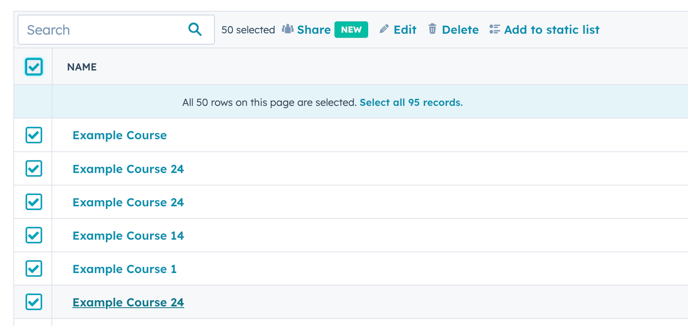
- Click Edit in the bar above the selection
- Choose "image" from the properties dropdown
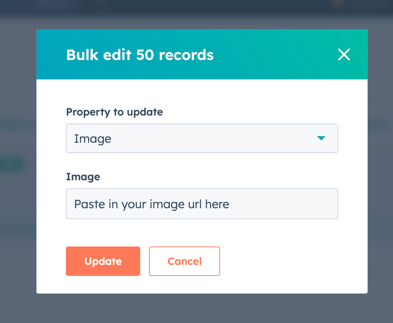
- Paste in your File URL that you copied above
- Click Update (and confirm) if necessary
- After a few moments the thumbnail should be updated for the course
Make sure to have your filters so you're updating the right courses.