

HubSpot just gave you 28 free days with Customer Agent. No credits burned. No commitment. Just a window to see if AI-powered support actually works for your business. Here’s the problem: most companies will flip it on, watch it answer a ...
 Remington Begg
·
·
12 min read
Remington Begg
·
·
12 min read
HubSpot just gave you 28 free days with Customer Agent. No credits burned. No commitment. Just a window to see if AI-powered support actually works for your business.
Here’s the problem: most companies will flip it on, watch it answer a few questions, shrug, and let the trial expire. That’s like test-driving a car by sitting in the driveway with the engine running. You didn’t learn anything.
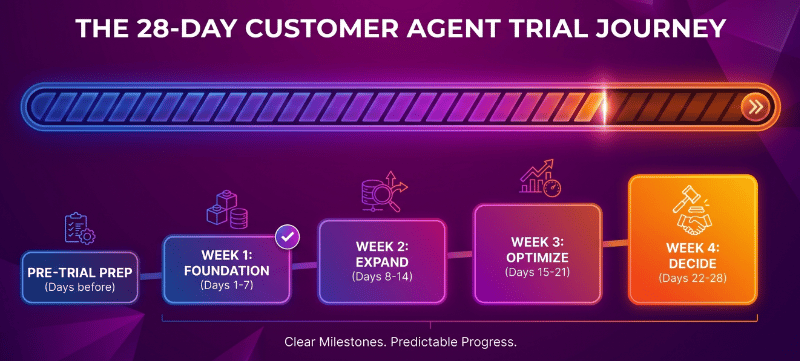
This guide walks you through a structured approach to your 28-day trial. We’re talking real preparation, intentional rollout, weekly checkpoints, and a clear picture of ROI before you ever spend a credit. Whether you’re a HubSpot admin doing the hands-on work or a director who needs to justify the investment, this is how you squeeze every drop of value out of those 28 days.
Before You Touch the Start Button: The Prep Work That Makes or Breaks Your Trial
The clock starts the moment you activate Customer Agent. Once it’s on, you’ve got 28 days, and every one of them counts. So before you click that button, you need to do the work that most teams skip entirely.
Think of it this way: if you hired a brand new support rep tomorrow, you wouldn’t hand them a headset and say “good luck.” You’d train them. You’d give them documentation. You’d tell them what questions to expect and how to handle the ones they can’t answer.
Customer Agent deserves the same onboarding.
Step 1: Audit Your Incoming Requests
Export your last 90 days of support tickets from HubSpot. You’re looking for patterns. What types of questions are people actually asking? How often? What’s the typical resolution?
Take that export and use a tool like Claude, Gemini, or ChatGPT to classify every ticket into organizational buckets. Don’t overthink the categories. You’re looking for clusters like:
-
Account/billing questions
-
Product how-to inquiries
-
Shipping and order status
-
Technical troubleshooting
-
Pre-sale questions from non-customers
-
Complaints and escalations
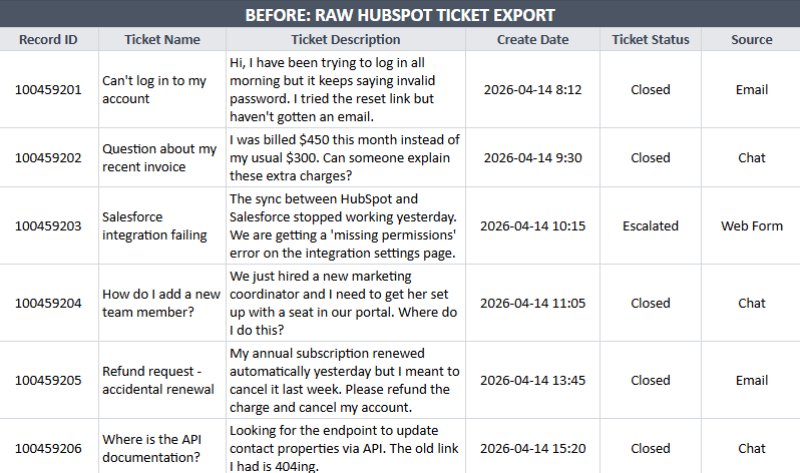
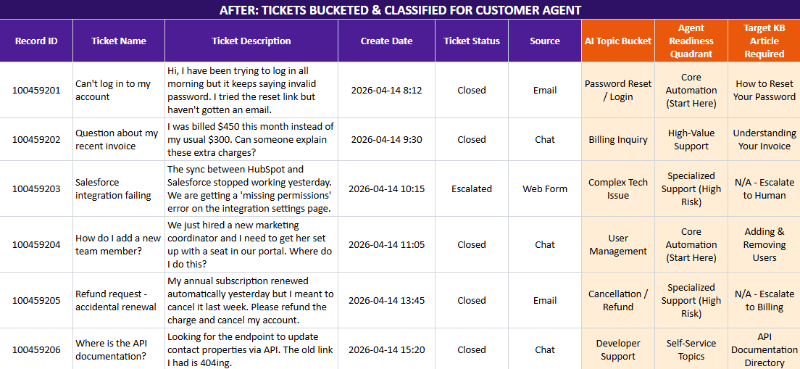
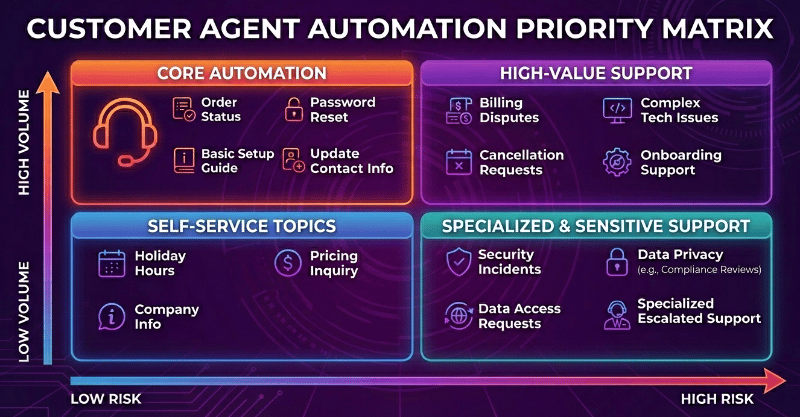
Once you’ve got those buckets, sort them by two dimensions: volume and risk. High-volume, low-risk inquiries are your starting lineup for Customer Agent. Things like “How do I reset my password?” or “What are your hours?” These are the questions that eat your team’s time without requiring human judgment.
The high-risk stuff, like billing disputes, angry customers, or anything involving sensitive account changes, stays with your humans. At least for now.
Step 2: Build (or Rebuild) Your Knowledge Base
Customer Agent is only as smart as the information you give it. It pulls from your HubSpot Knowledge Base first, your website content second, and connected sources after that. If your knowledge base is thin, outdated, or disorganized, Customer Agent will reflect that right back at your customers.
Here’s where tools like Google’s NotebookLM become incredibly useful. Gather everything you’ve got: internal SOPs, training docs, product guides, video transcripts, FAQ documents, even that shared Google Doc your team has been editing for three years. Drop all of it into NotebookLM.
Then do something smart: take those classified ticket categories from Step 1 and turn them into questions. Feed those questions to NotebookLM. It’ll synthesize answers from your source material. Now you’ve got the raw content for knowledge base articles that are actually grounded in what your customers ask, not what your product team thinks they should ask.
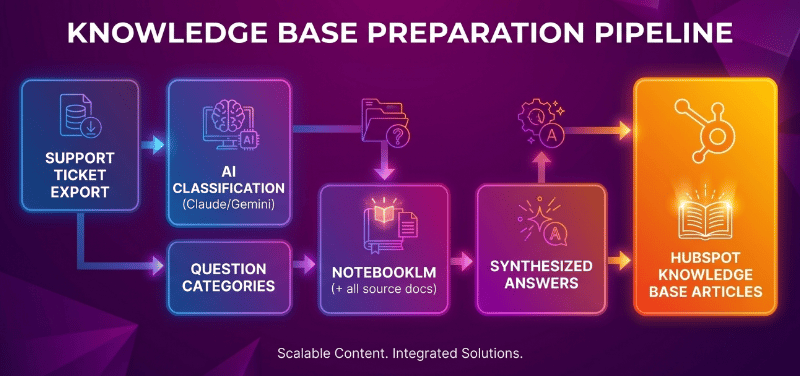
If you’re on HubSpot’s new knowledge base system (they migrated everyone in early 2026), make sure your articles are actually published and live. We wrote a step-by-step guide on the HubSpot Knowledge Base migration that walks through the entire process. Don’t skip this. Unpublished articles are invisible to Customer Agent.
Step 3: Configure Your HubSpot AI Settings
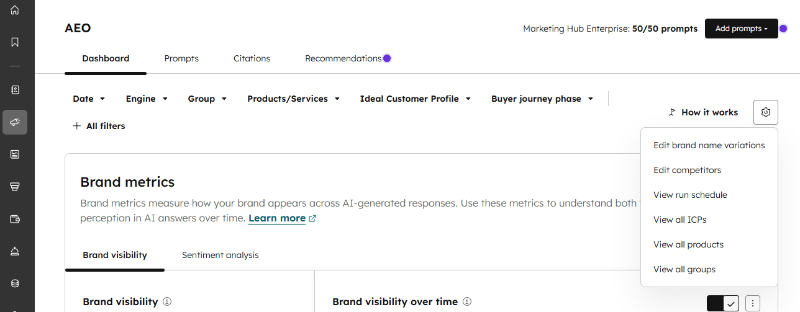
This is the step almost everyone glosses over, and it’s arguably the most important. Your HubSpot AI settings control what data Customer Agent can access, how it understands your brand, and who it thinks your customers are.
In your HubSpot account, go to Settings > Account Management > AI. You’ll want to review and configure:
-
Generative AI access: Make sure “Give users access to generative AI tools and features” is toggled on.
-
CRM data access: Allow AI to access CRM records and default properties. This gives Customer Agent context about who it’s talking to.
-
Customer conversation data: Enable this so Customer Agent can reference past interactions.
-
Brand voice: Set this up if you haven’t already. Customer Agent can adopt your configured brand voice, so the responses sound like your company, not a generic chatbot.
-
Buyer profiles: Configure these so Customer Agent understands your different customer segments and their pain points.
-
Products and services: Fill in your value proposition and what pain points your company solves. This context shapes how Customer Agent frames its responses.
Your AI Is Only as Good as What You Tell It About Your Brand
HubSpot's brand voice settings are only as good as the thinking behind them. That's where BRANDy comes in. Our AI brand strategist walks you through every decision about how your brand sounds, and when you're done, the tool connects to your HubSpot portal and writes the settings directly. No copying, no pasting, no staring at a blank field wondering what to type.
Is Your Brand Voice Ready for HubSpot AI?
Work through your brand voice with BRANDy, our AI brand strategist, and we'll configure your HubSpot AI settings for you.
Stop guessing. Start sounding like yourself.
Build Your Brand VoiceDay 1-7: The Controlled Launch
Your prep work is done. The knowledge base is populated. AI settings are configured. Now it’s time to turn Customer Agent on, but with guardrails.
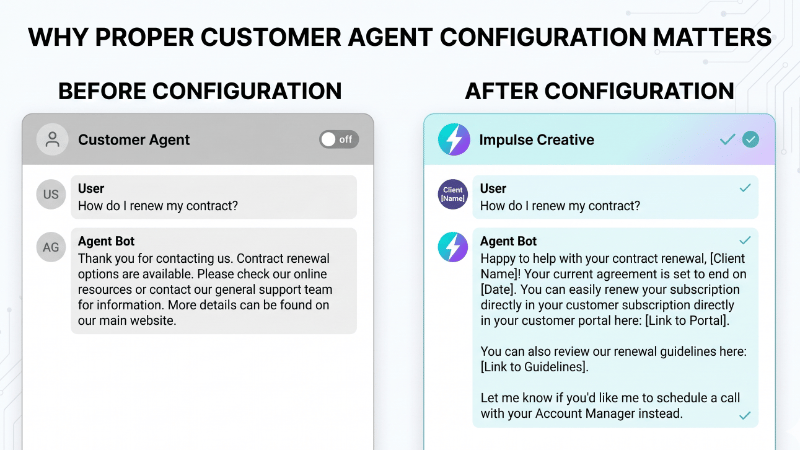
Set Up Your Agent Profile
Navigate to Service > Customer Agent and click “Set up your agent.” Think about this the way you’d think about onboarding a new employee:
-
Name it intentionally. This shows up in conversations. Make it professional.
-
Choose a personality. HubSpot offers Friendly, Professional, Casual, Empathetic, and Witty. Or use your brand voice. Pick whatever matches how your support team actually talks to customers.
-
Write clear instructions. With the recent update to Customer Agent configuration, you can now provide detailed instructions about tone, response style, and how certain questions should be handled. Don’t leave this generic. Tell it what to do and, just as importantly, what not to do.
Start Small: The 10-20% Rule
Don’t deploy Customer Agent across every channel on day one. That’s the fastest way to burn through your trial learning nothing useful.
Instead, start with 10-20% of your incoming volume. How you do this depends on your setup:
-
By channel: Turn it on for email support only (not live chat). Email conversations close after 72 hours of inactivity, giving you more room to review before things escalate.
-
By segment: Use HubSpot’s targeting capabilities to route only non-customer inquiries to Customer Agent. Or start with a specific pipeline of low-complexity requests.
-
By schedule: Deploy Customer Agent only during off-hours when your human team isn’t available. This is a great way to test without any overlap or confusion.
The goal isn’t to test whether Customer Agent can answer everything. It’s to test whether it can answer the right things, accurately, with your content.
Test Before You Go Live
HubSpot has a built-in testing tool. Use it. Go to Service > Customer Agent, click “Test [agent name]” in the top right, and run through those classified questions from your prep work.
You’re checking three things:
-
Accuracy: Is the answer correct based on your knowledge base?
-
Completeness: Did it provide enough information, or did it leave the customer hanging?
-
Tone: Does it sound like your brand?
Compare the agent’s responses to how your human team actually resolved similar tickets. If there’s a gap, go back and strengthen your knowledge base articles before launching.
Day 8-14: Expand and Observe
By the end of Week 1, you should have real conversations to review. Set a calendar reminder and block time for it. This isn’t optional.
The Weekly Audit
Pull up every Customer Agent conversation from the past week. For each one, you’re evaluating:
- Did Customer Agent resolve the inquiry without human intervention?
-
Was the answer accurate and complete?
-
What was the customer’s sentiment? (HubSpot’s message insights now surface this.)
Put the gaps into a spreadsheet. Not a mental note. Not a Slack message. A spreadsheet. You need to track patterns, because individual misses don’t tell you much, but clusters of the same type of miss tell you exactly where your knowledge base has holes.

Fill the Gaps
Every gap you identified is a knowledge base article waiting to be written. This is the feedback loop that makes Customer Agent better over time. The agent tried to answer something, fell short, and now you know exactly what content to create.
Go back to your NotebookLM setup (or whatever tool you’re using) and generate the missing content. Publish it to your HubSpot Knowledge Base. Then test the same question again with Customer Agent to confirm it’s now handled correctly.
Dial Up the Volume
If Week 1 went well and your accuracy scores are solid, increase Customer Agent’s coverage. Move from 10-20% to 30-40% of incoming volume. You can do this by:
- Adding another channel (e.g., live chat in addition to email)
-
Expanding to include customers, not just non-customers
-
Broadening the ticket types that get routed to the agent
Don’t jump to 100%. Gradual expansion lets you catch problems before they become patterns.
Day 15-21: Optimize and Project
By now you’ve got two weeks of data. That’s enough to start making projections about what Customer Agent would look like as a permanent part of your support stack.
Measure What Matters
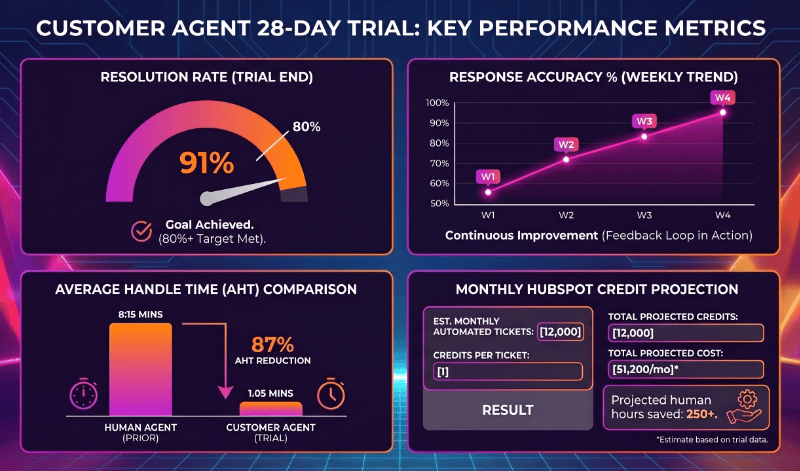
Here are the numbers you should be tracking:
- Resolution rate: What percentage of conversations did Customer Agent fully resolve without a human handoff?
- Accuracy rate: Of the resolved conversations, what percentage were answered correctly?
- Average handle time: How long does it take Customer Agent to close a conversation vs. your human team?
- Customer satisfaction: If you’re running CSAT surveys, how do agent-resolved conversations compare?
- Credit projection: Each conversation costs approximately 100 HubSpot credits. Based on your current volume and resolution rate, what would monthly credit usage look like?
Refine the Handoff Process
By Week 3, you should have a clear picture of which conversations Customer Agent handles well and which ones need a human. Now’s the time to fine-tune your handoff rules:
- Sentiment-based handoff: If a customer’s tone turns negative or frustrated, route to a human immediately.
- Complexity-based handoff: If the inquiry requires account changes, refunds, or anything involving multiple systems, hand it off.
- Timeout-based handoff: If Customer Agent can’t resolve within a certain number of exchanges, escalate.
Make sure your human team knows how to pick up where the agent left off. There’s nothing worse for a customer than explaining their problem twice.
Refine the Handoff Process
With three weeks of data, you can make an informed decision about when Customer Agent should be active:
- 24/7 coverage: The agent handles everything when your team isn’t online, and supplements your team when they are.
- After-hours only: The agent covers nights, weekends, and holidays. Humans handle everything during business hours.
- First responder: Every inquiry hits the agent first. If it can resolve it, great. If not, it gathers initial information and routes to a human with context.
Each model has different credit implications. The 24/7 model will use the most credits. After-hours will use the fewest but still covers the gaps that frustrate customers the most.
Day 22-28: Decide and Plan
This is your decision week. By now you’ve got nearly a month of real-world data, a refined knowledge base, clear metrics, and a solid understanding of what Customer Agent can and can’t do for your business.
Build Your Business Case
Whether you’re the admin presenting to leadership or the director making the call, you need clear numbers. Pull together:
- Total conversations handled by Customer Agent during the trial
- Resolution rate and accuracy rate
- Estimated time saved for your human team (conversations resolved x average human handle time)
- Projected monthly credit usage at your intended coverage level
- Cost comparison: credits cost vs. equivalent human support hours
For context, HubSpot Professional accounts get 3,000 credits per month, and Enterprise accounts get 5,000. Each Customer Agent conversation costs about 100 credits. If you project more than your allocation, you’ll want to understand how HubSpot’s credit system works before those overages surprise you.
What “Good” Looks Like by Day 28
If your trial went well, you should be able to check most of these boxes:
- Customer Agent resolves 40-65% of incoming inquiries without human intervention
- Accuracy rate is above 85% based on your weekly audits
- Customer satisfaction scores for agent-handled conversations are within 10% of human-handled conversations
- You have a clear monthly credit projection that fits within your budget
- Your knowledge base has grown substantially from the gap-filling process
- Your team understands the handoff process and trusts the agent to handle its lane
If you’re not there yet, that doesn’t mean Customer Agent isn’t right for you. It might mean your knowledge base needs more work, your targeting was too broad, or your instructions need refinement. All of those are fixable.
The Bigger Picture: Why This Isn’t Just About Support
Here’s what most teams miss about Customer Agent: it’s not just a support tool. The process of setting it up, building your knowledge base, classifying your inquiries, and refining your content, that work makes your entire business smarter.
Your knowledge base content also feeds AI agents beyond HubSpot. When your content is structured, accurate, and comprehensive, it shows up better in AI-driven search, in buyer research tools, and in the recommendations that AI agents make to your prospects. It’s the same principle behind Answer Engine Optimization: content built for AI consumption pays dividends across every channel where AI mediates the buyer’s experience.
The 28-day trial isn’t just about testing a tool. It’s about building the content infrastructure that powers your next generation of customer experience.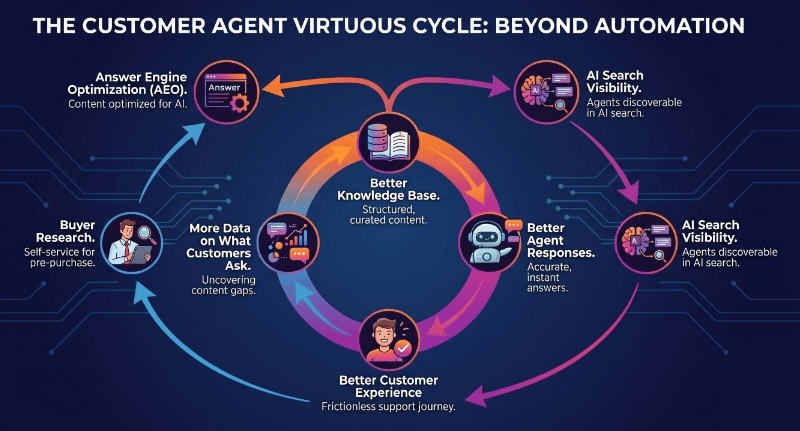
Your 28-Day Customer Agent Trial Checklist
Before You Start (Pre-Trial)
☐ Export and classify 90 days of support tickets
☐ Identify high-volume, low-risk inquiry categories
☐ Build or update HubSpot Knowledge Base articles
☐ Configure all HubSpot AI settings (CRM data, brand voice, buyer profiles)
☐ Set up Customer Agent profile with detailed instructions
☐ Test agent responses against real classified questions
Week 1 (Days 1-7)
☐ Deploy to 10-20% of volume via a single channel or segment
☐ Monitor conversations daily
☐ Document any response gaps or inaccuracies
Week 2 (Days 8-14)
☐ Conduct full audit of all Week 1 conversations
☐ Fill knowledge base gaps identified in the audit
☐ Increase coverage to 30-40% if accuracy is strong
☐ Add a second channel or segment
Week 3 (Days 15-21)
☐ Track resolution rate, accuracy, handle time, and CSAT
☐ Refine handoff rules based on real data
☐ Decide on scheduling model (24/7, after-hours, first responder)
☐ Project monthly credit usage
Week 4 (Days 22-28)
☐ Compile trial metrics into a business case
☐ Calculate ROI vs. human support costs
☐ Make a go/no-go decision with supporting data
☐ Plan credit allocation and coverage model for ongoing use
Ready to make the most of your Customer Agent trial, or need help figuring out what comes next?
If you’ve run the trial and want someone to help you assess your results, project your credit usage, or expand into other HubSpot AI agents like Prospecting Agent, we’ve been doing this since before Breeze had a name.
We’ll review your trial data, help you build a credit budget that makes sense, and map out a plan for getting real ROI from HubSpot’s AI tools, not just checking a box that says you tried it.
Book a HubSpot AI Strategy Conversation with Impulse Creative